

Notion
Last updated February 28, 2023
Notion is a widely-adopted workspace management tool with huge versatility. While it’s not specifically created to track training content, we made a template that allows you to turn your Notion workspace into a lightweight LMS. If you haven’t already, get the Notion Training Center template here .
🎓 The Training Center
This page is about connecting your Notion Training Center to Basewell. Instructions on how to use the Notion Training Center Template will be found in the Notion Training Center Template.
Note: your pages in the Notion Training Center need to stay exactly the same in order to communicate correctly with Notion’s API & Basewell.
⚠️ Only proceed when you’ve set up your Notion Training Center template in accordance with those instructions.
🏗 Setting Up the Basewell API
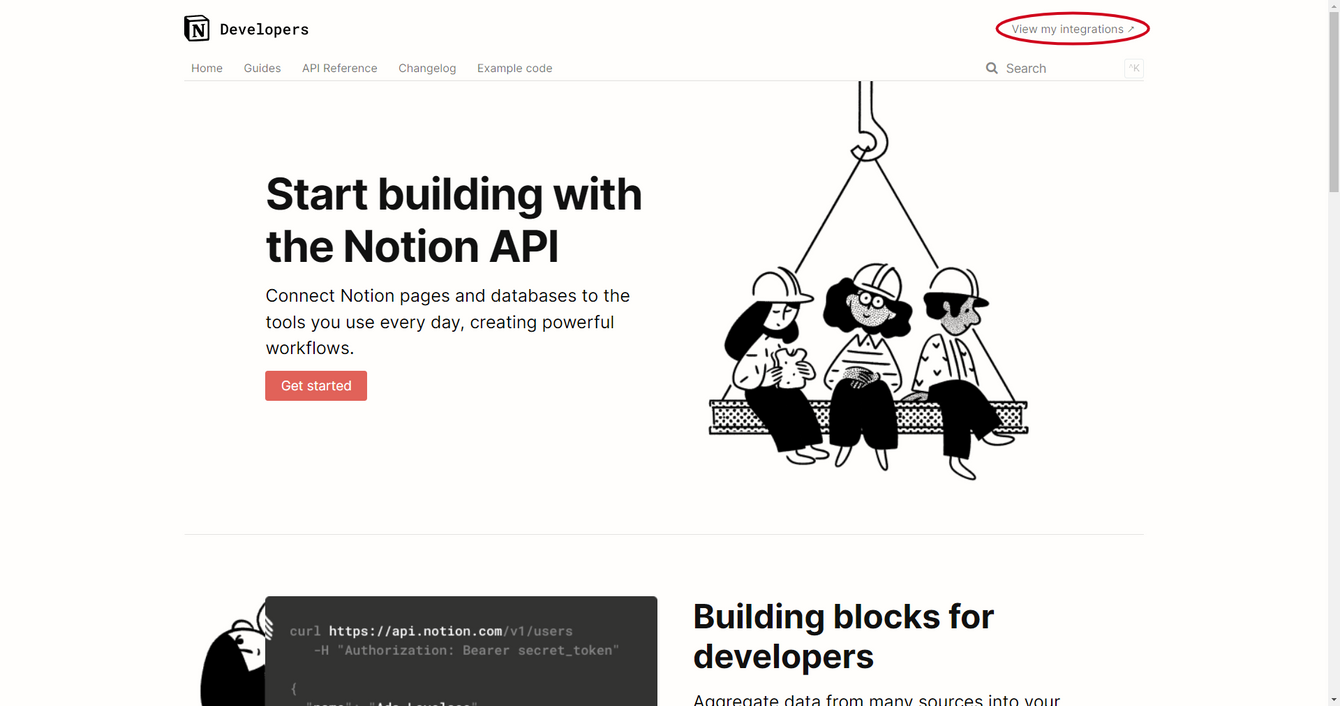
- Navigate to https://developers.notion.com/
- Click on
view my integrationsin the top-right corner
- Click on the
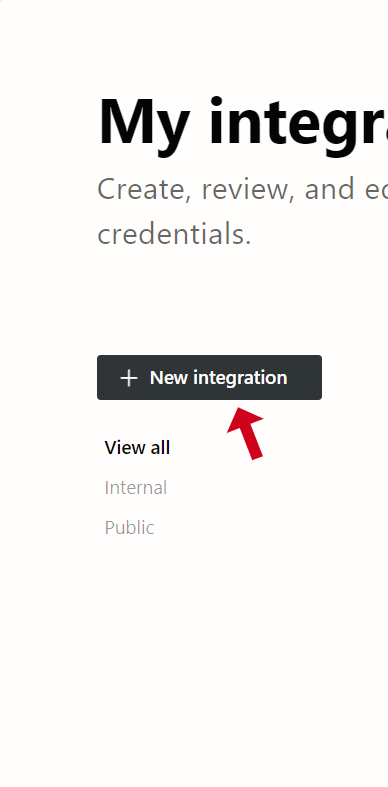
New Integrationbutton on the left-hand side
- Complete the
Basic Informationsteps:
Name: typeBasewellLogo: add the Basewell logo ↓ Basewell Social Media Logo.pngAssociated Workspace: Make sure this option is the company you’re using with Basewell. Some people might have multiple professional and personal Workspaces and your integration only works with one workspace, so double-check and make sure this is accurate. (In the video below, you’ll seeBasewellas our workspace. Note yourassociated workspaceoption will not sayBasewellhere.)
Capabilities
Content Capabilities: Ensure that the followingcontent capabilitiescheckboxes are checked ☑:
- ☑️ Read Content
- ☑️ Update Content
- ☑️ Insert Content
User Capabilities: Ensure thethirdoption,read user information including email addressesis checked ☑️. [add S3 video here]
- Click on the
New Integrationbutton on the left-hand side - Click the
submitbutton of the form.
🔑 Adding your Notion Secret Key to Basewell
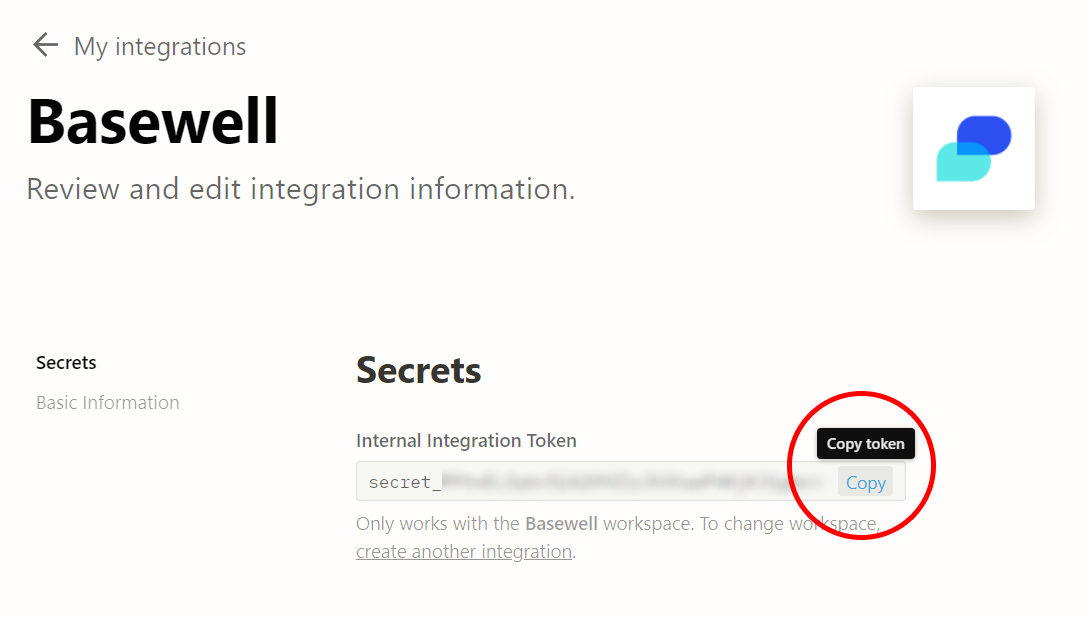
⚠️ You can only add a secret key to Basewell after your Basewell integration has been created. If you have not done so, complete the step above first.- Navigate to your Basewell integration and copy the
secret keythat appears at the top of the page.
- Go into your Basewell account and click
settingsfrom the left sidebar. - Scroll down to
Notion Settingsin thesettingspage
- Paste your
secret keyin the top bar that has theKEYplaceholder. - Click the blue
savebutton to the right of theKEYbar
- You’re done! Basewell now has access to your Notion account.
🔍 Cross-Referencing Notion x Basewell Users
Below the Secret Key section in your settings page, you will see a few blocks: Notion Contact Matching, Contacts Found in Notion, Notion Contacts not found in Basewell, and Matched Notion Users. We’re going to take a look at each one in this section.
🧩 Notion Contact Matching
Start the process of matching contacts by clicking the button that says: Fetch Users from Notion. This will search your Notion workspace and pull all users in your Notion workspace into Basewell.

😀 Contacts found in Notion
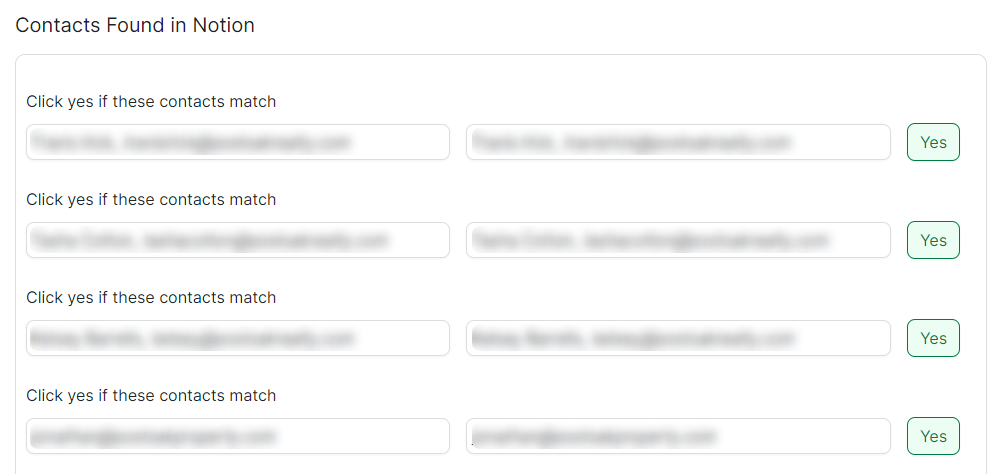
After loading users from Notion, you will see a list of contacts that are found in your Notion workspace and Basewell account.
Note: user matching is based onemails, not just user names.
You will be asked to confirm if a user in your Notion workspace matches the user in your Basewell workspace. If yes, click yes. If no, do nothing.
Note: this list will only appear if you previously added users to Basewell before importing Notion users. If you do not see any users in this list because you did not add any users to Basewell previously, that’s okay.
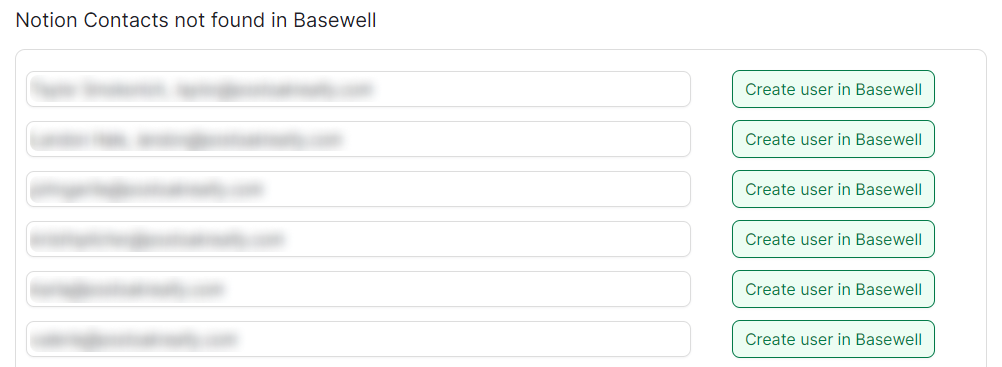
🔍 Notion Contacts not found in Basewell
If you have not uploaded users previously to your Basewell account, or there are new users in your Notion workspace that aren’t in your Basewell account, a list will populate here.
If you want to create a Basewell user with the name or email found in your Notion workspace, click create user in Basewell. If you do not want to create a Basewell user with the name or email found in your Notion workspace, do nothing.
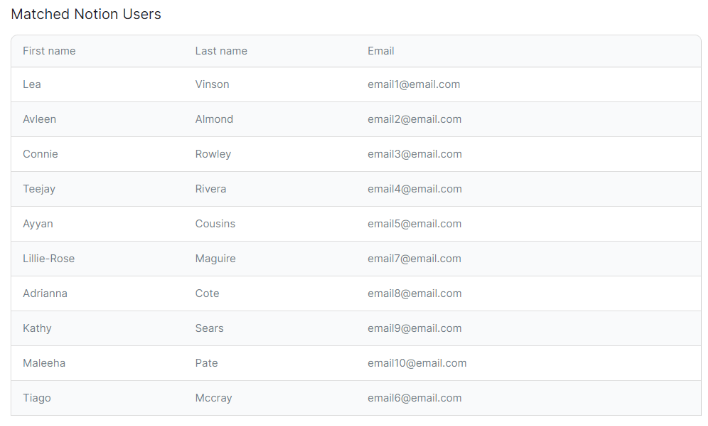
🤝 Matched Notion Users
A list of the users you have matched from your Notion and Basewell accounts is here.
Have questions with your Notion integration? Email us → support@basewell.com .